Create a board
One project has one board. When you create it, three columns — "To do · In progress · Done" — are made automatically.
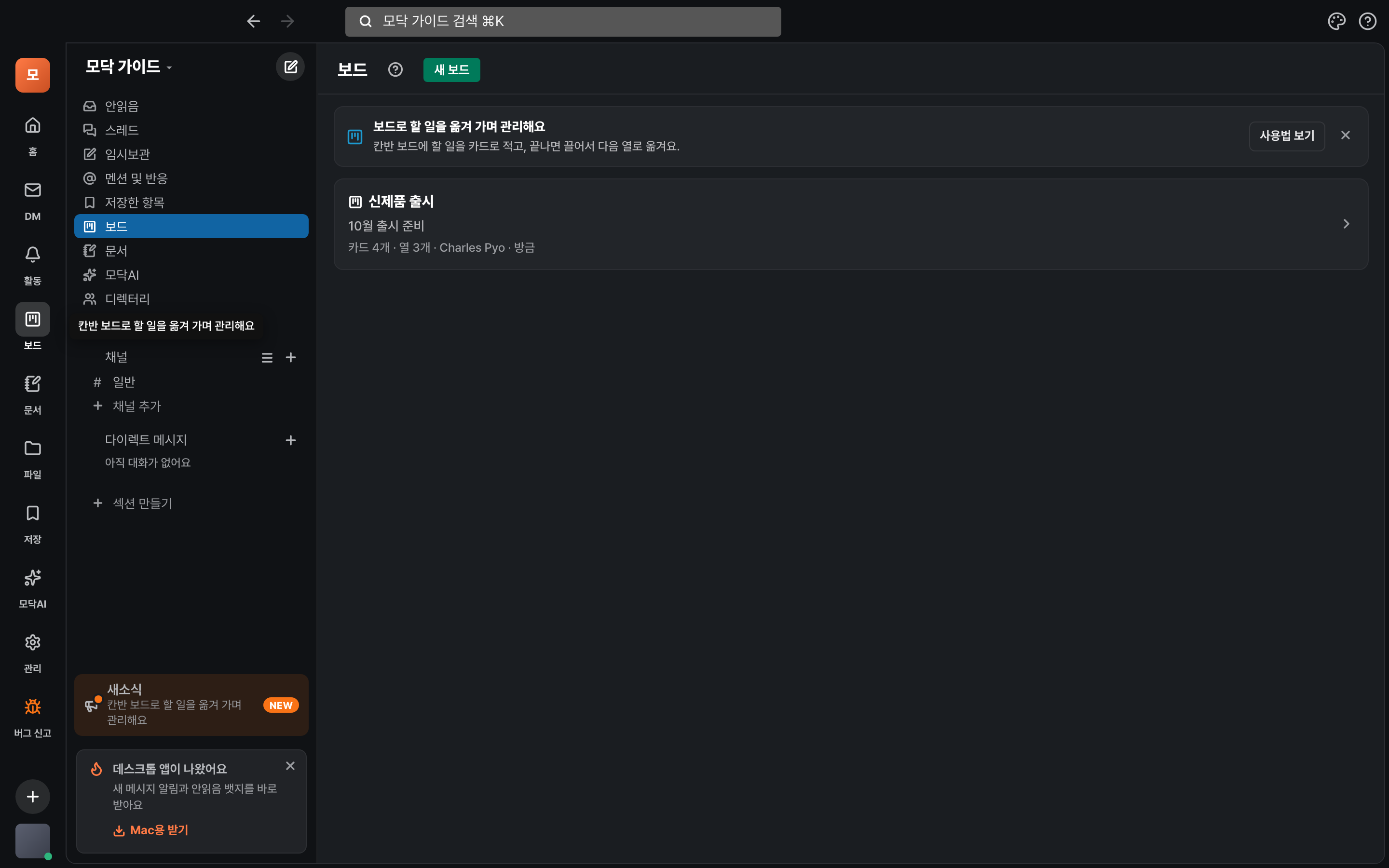
AOpen the board list
- In the vertical bar (rail) on the far left of the screen, tap "Boards". (If you don't see it, try scrolling the bar up or down a little.)
- If you don't have any boards, you'll see an empty screen that says "No boards yet." That's normal.
If it's your first time, a blue guide bar appears at the top. Press "See how to use" and this help page opens in a new tab.
BCreating a new board
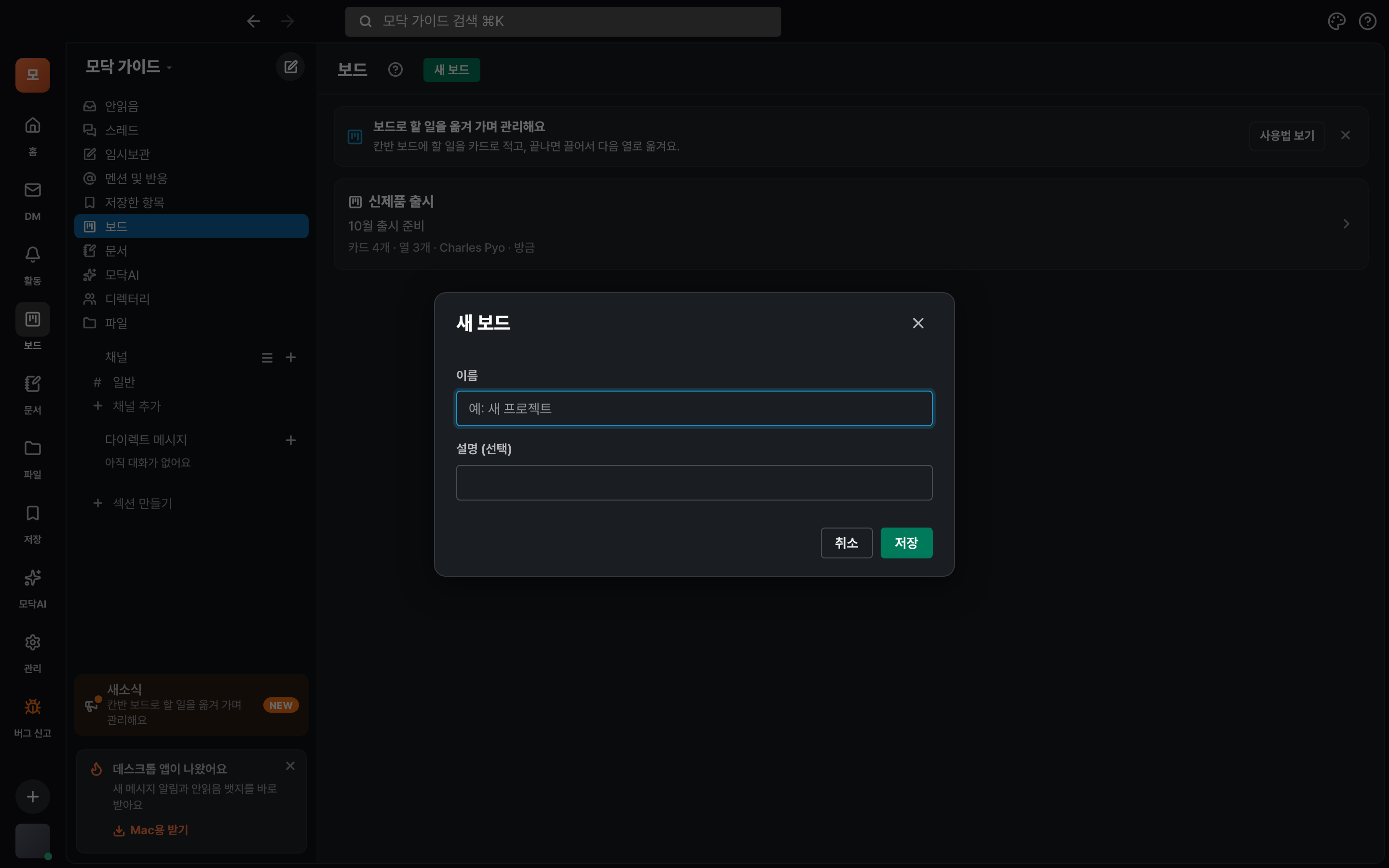
- Tap 「New board」 at the top right.
- Enter a name. For example: "New product launch." You can leave the description empty.
- Click 「Save」 and you'll go straight to that board.
You can change the name later anytime with "Rename" at the top right inside the board.
Adding a card
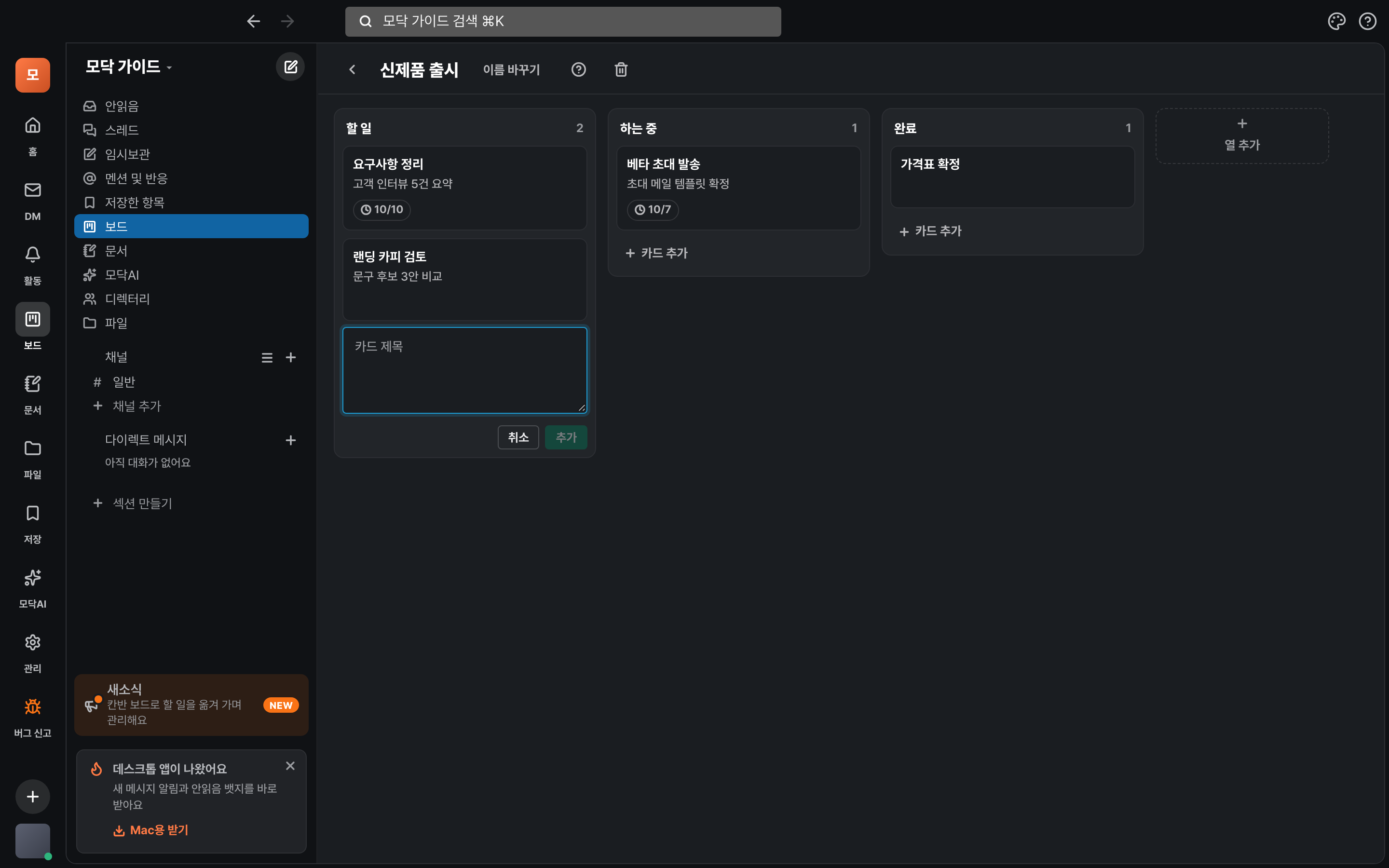
One task is one card. Tap "+ Card" below a column and write it down.
AWriting a card
- Tap 「+ Card」 below the column where you want the card.
- Write a title. For example: 「Requirements summary」
- Click 「Add」 or press Enter. (To cancel, click 「Cancel」 or press Esc)
- The card appears right away in that column. You can also add several in a row.
It's also added with Enter. The "Cancel" and "Add" buttons at the bottom of the screen make it easy to follow.
BWhat you see on a card
- The assignee's face below the card — you can see right away whose task it is.
- Due date pill (10/10) — shows up when a due date is set. It turns red once it's past.
- A one-line description under the card title — if it's long, it gets cut off. Tap the card to see more.

Working with cards in detail
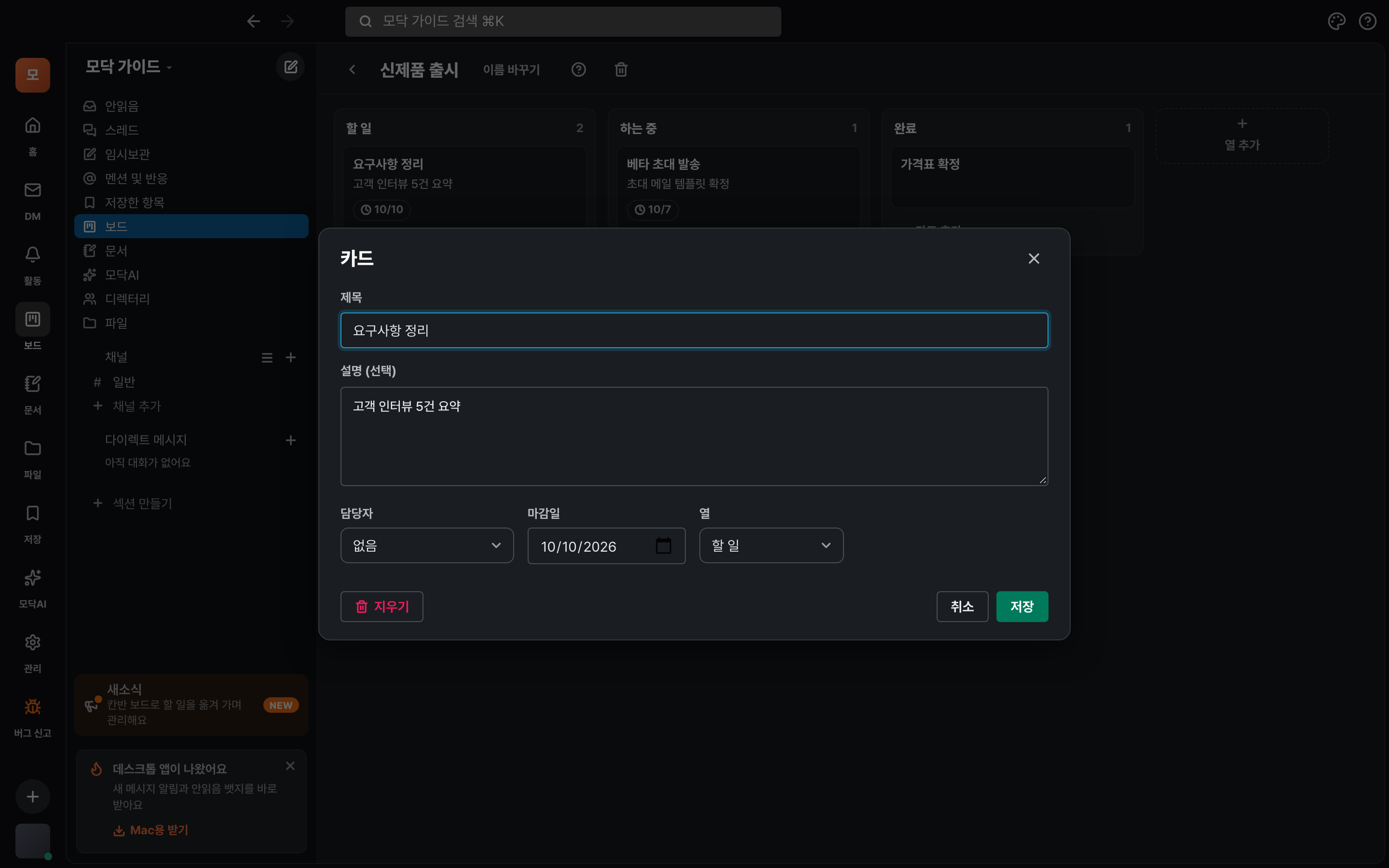
Click a card once to open its details. You can edit the assignee, due date, and description there.
AEdit in the detail window
- Title — The card's name.
- Description — Write down why you're doing this and add any links for reference.
- Assignee — pick from the list, or choose 「None」 to clear it.
- Due date — pick one from the calendar, or clear it.
- Columns — You can also move cards right from here.
- Click 「Save」 to finish. To delete it, use 「Delete」 at the bottom left.
If dragging doesn't work or you're on a phone, change it using 「Column」 in this window.
Drag and drop
To move finished tasks, just drag and drop them. It works the same with your finger on a phone.
AHow to move
- Grab the card while pressing and holding. The card lifts up slightly.
- Drag it over the column you want to move it to. That column gets a blue border.
- When you let go, the card moves to that column.
- When you move it, it shows up right away on everyone else's screen too.
Just clicked it? The card doesn't move, and the detail window opens (step 3). Just remember: click a card for details, drag it to move.
Add a column
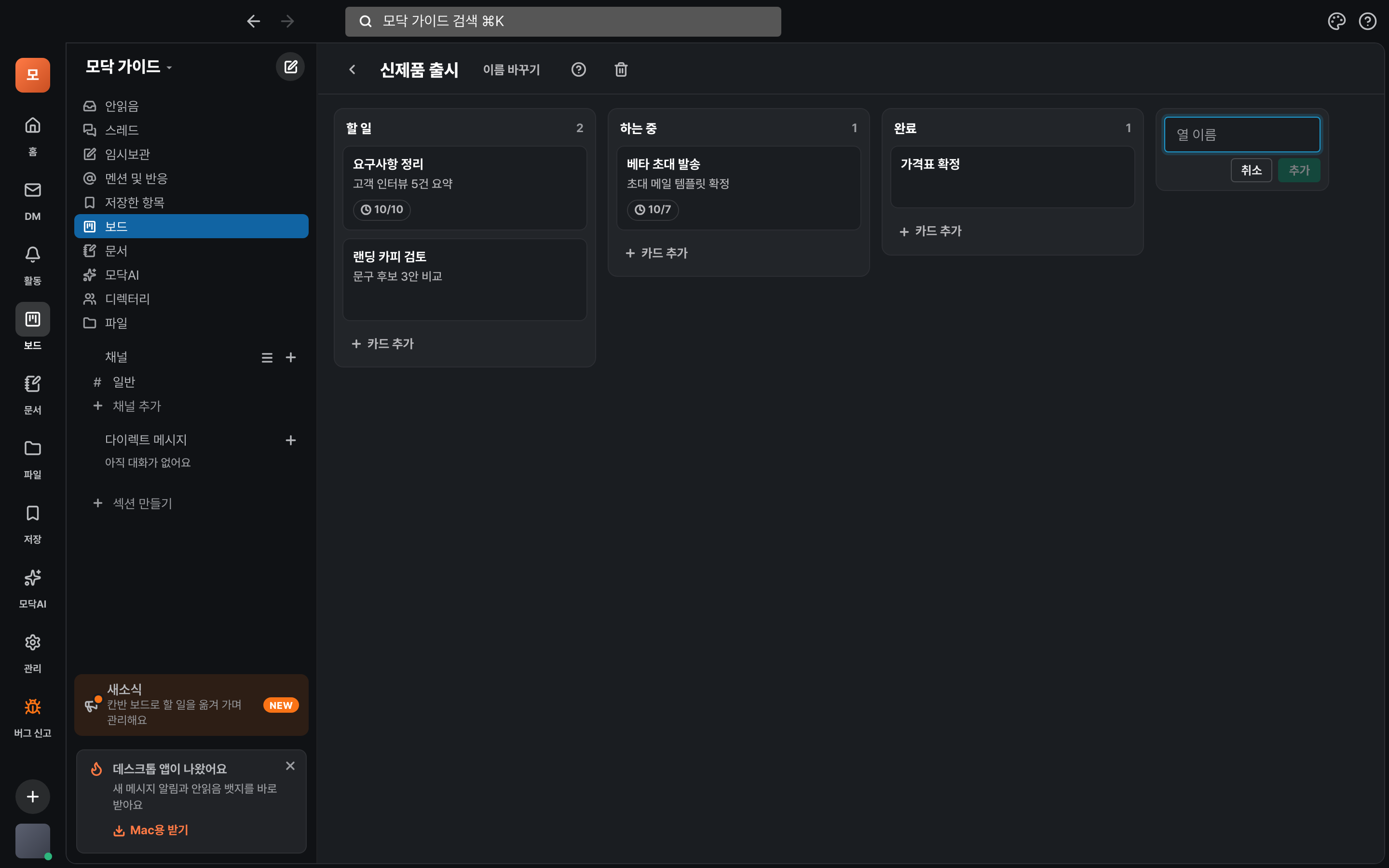
If you need another column like "In review," add it next to the last column.
AAdd more columns
- If there are many columns and some are off-screen, scroll the bottom bar sideways (mouse wheel sideways, or two fingers on a trackpad).
- Tap "+ Add column" next to the last column.
- Type a name and tap 「Add」. (To stop, tap 「Cancel」)
You can make up to 10 columns. You can change the names after you create them, too.
Viewing on your phone
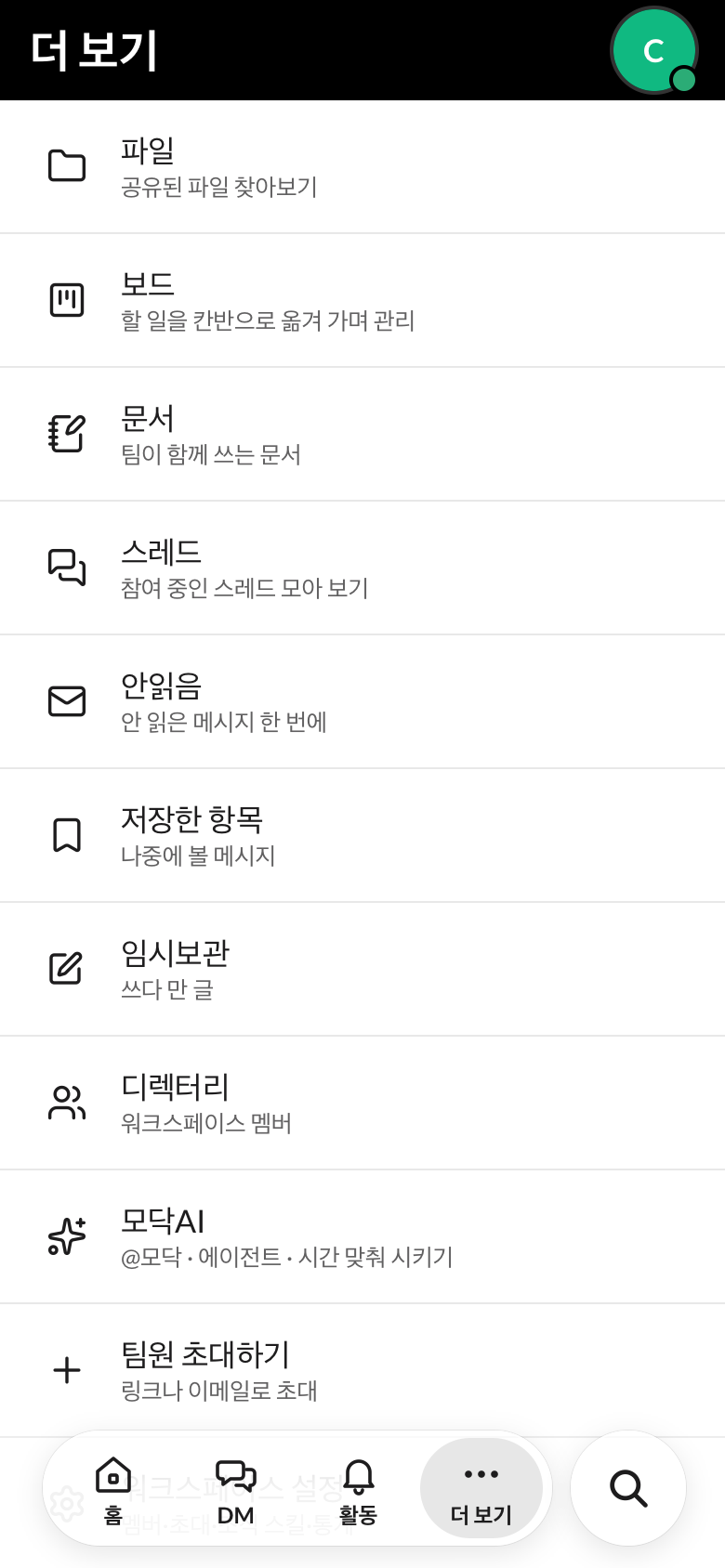
It works the same in the phone app. Only how you get there is different — instead of the left rail, use the "More" tab at the bottom.
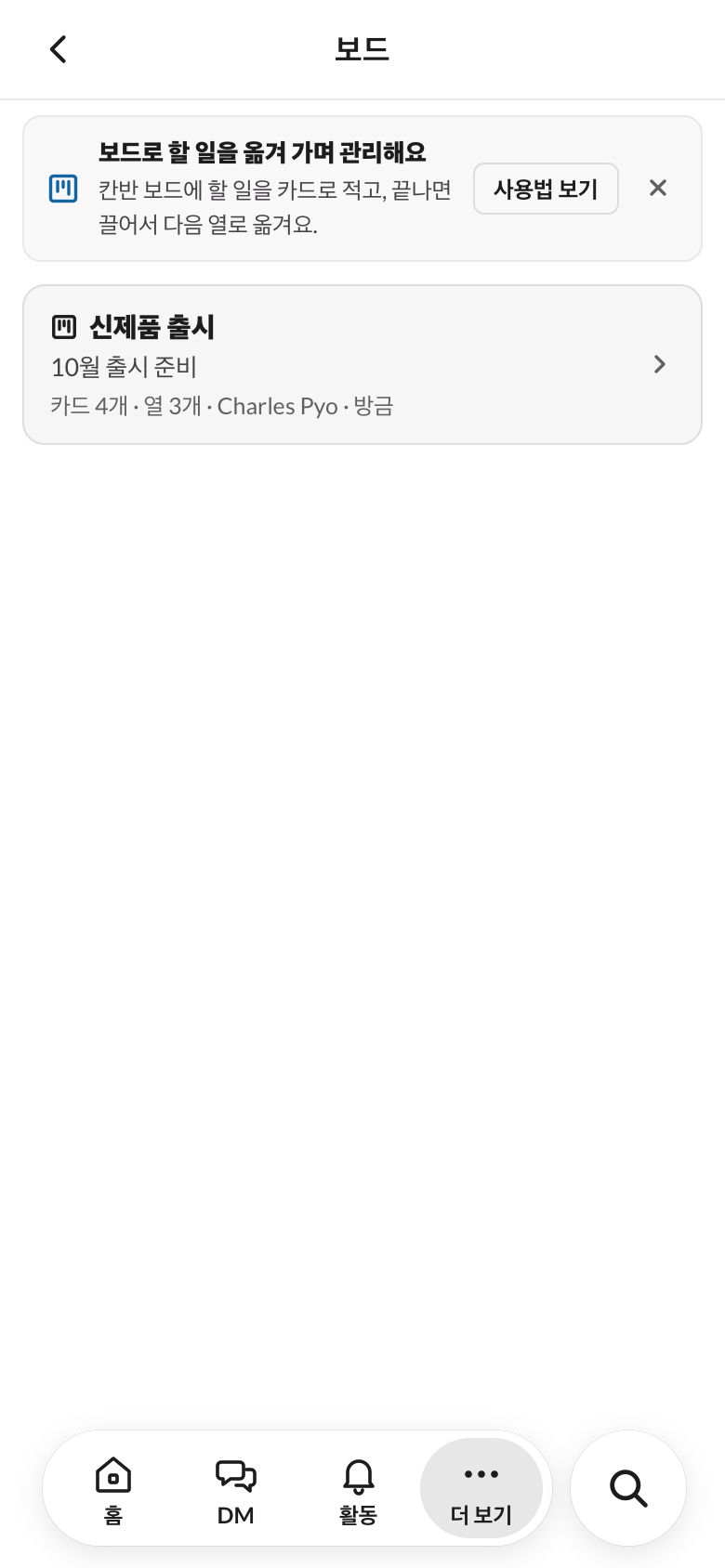
AOpening boards on your phone
- Tap 「More」(…) in the bottom tabs.
- In the list, tap "Boards".
- When you open a board, the columns sit side by side. Swipe sideways with your finger to see the next column.
- Press and hold a card, then drag it to move it to another column. If pressing and holding is hard, tap the card and change the 「Column」 in the details.
Good to know
- Everyone sees it together — anyone in the same company (workspace) can view and edit boards and cards together. Changes show up on everyone else's screen right away.
- Guests can't see it — guests who only see one invited channel can't see the board.
- Modak AI reads it too — in a channel, ask @Modak 「What's on my plate this week?」 and it looks at the board to answer.
- Delete a board — Use the trash icon at the top right inside the board. Cards and columns disappear with it, so check first before deleting.
Stuck?
- The card won't move
- Grab the card and move it a little further before letting go (a tiny movement counts as a 「tap」). If it still doesn't work, tap the card and change it in 「Column」 in the detail window.
- I can't see "Add column"
- If there are many columns, some are off-screen. Drag the horizontal scroll bar at the bottom of the board sideways, or swipe two fingers sideways on a trackpad.
- The due date keeps turning red
- It means the date has passed. Tap the card to change the date or remove it.
- I deleted it by mistake
- Sorry, there's no undo yet. For risky cards, tell the person in charge. You can also tell us with 「Report a bug」 in the app and we'll take a look.