Create a doc
One set of meeting notes or one checklist is one doc. When you create it, the editor opens right away so you can start writing.
AOpen the document list
- In the vertical bar (rail) on the far left of the screen, tap "Docs".
- The documents you've made so far appear in order of last edited. The title, first line, and who edited it are shown together.
If it's your first time, a blue guide bar appears at the top. Press "See how to use" and this help page opens in a new tab.
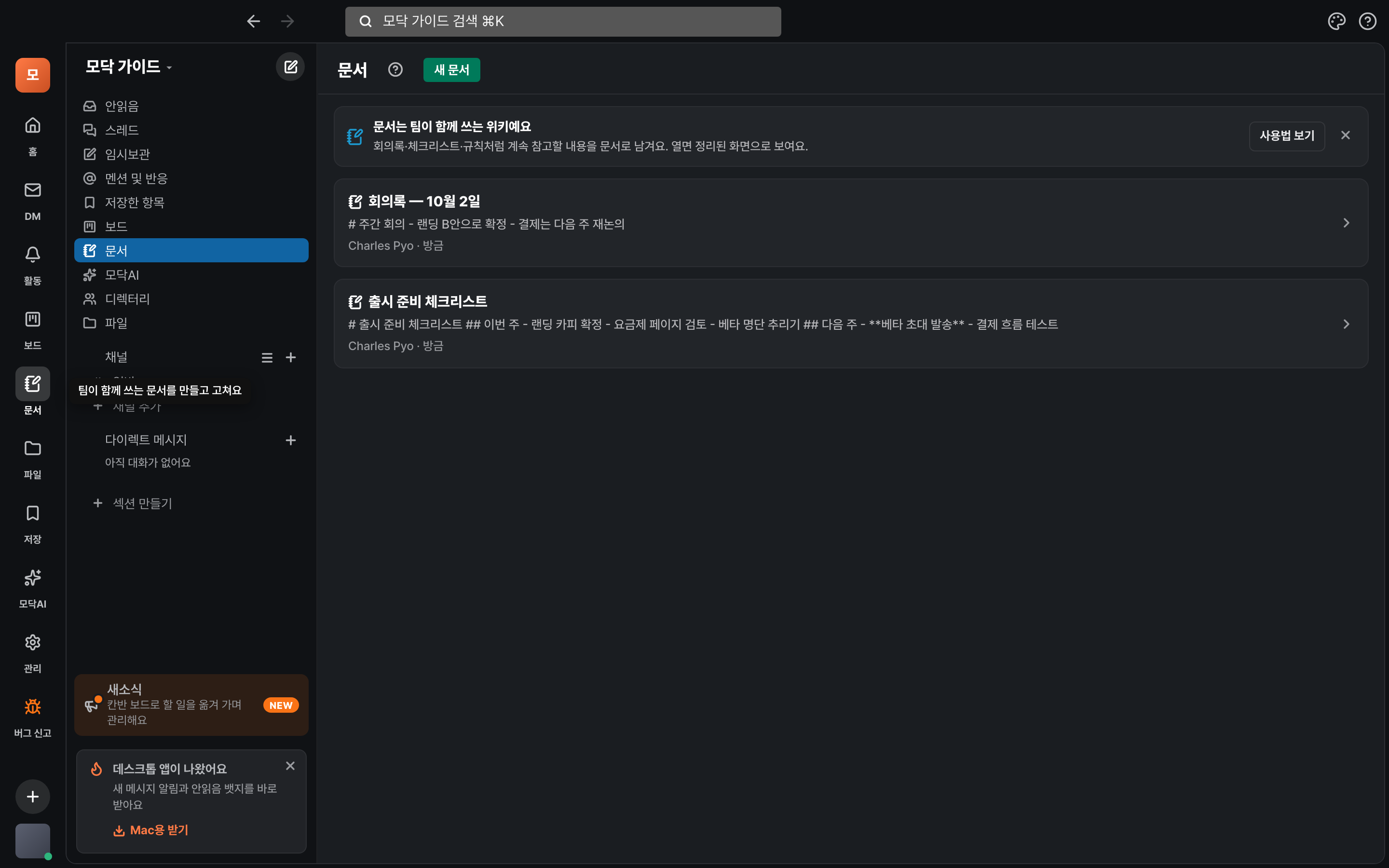
BStarting a new doc
- Tap 「New doc」 at the top right.
- The edit screen opens right away with the cursor in the title. Start with the title.
- Write your content in the big box below. You don't need to know Markdown — just use the buttons in the next step.
Viewing and editing
When you open a doc, you first see a clean, easy-to-read view. Tap "Edit" only when you want to make changes.
AView — looks nice as soon as you open it
- In 「Docs」 on the left rail, tap a doc to open it right away.
- Headings, lists, and bold text show up as a neatly formatted view. You can read it just like meeting materials.
- To make changes, tap "Edit" (the pencil) at the top right.
If you just want to look, not edit, don't press anything. If you press something by mistake, "Cancel" always takes you back.

BEditing — the cursor is in the title
- Click 「Edit」 and the screen switches to edit mode with the cursor in the title. Just start typing.
- The big box below is the body. When you edit the text, 「Not saved」 appears at the top.
- When you're done editing, tap "Save" (or ⌘S).
- To stop, tap "Cancel" — your changes will be lost, so it'll ask you first.
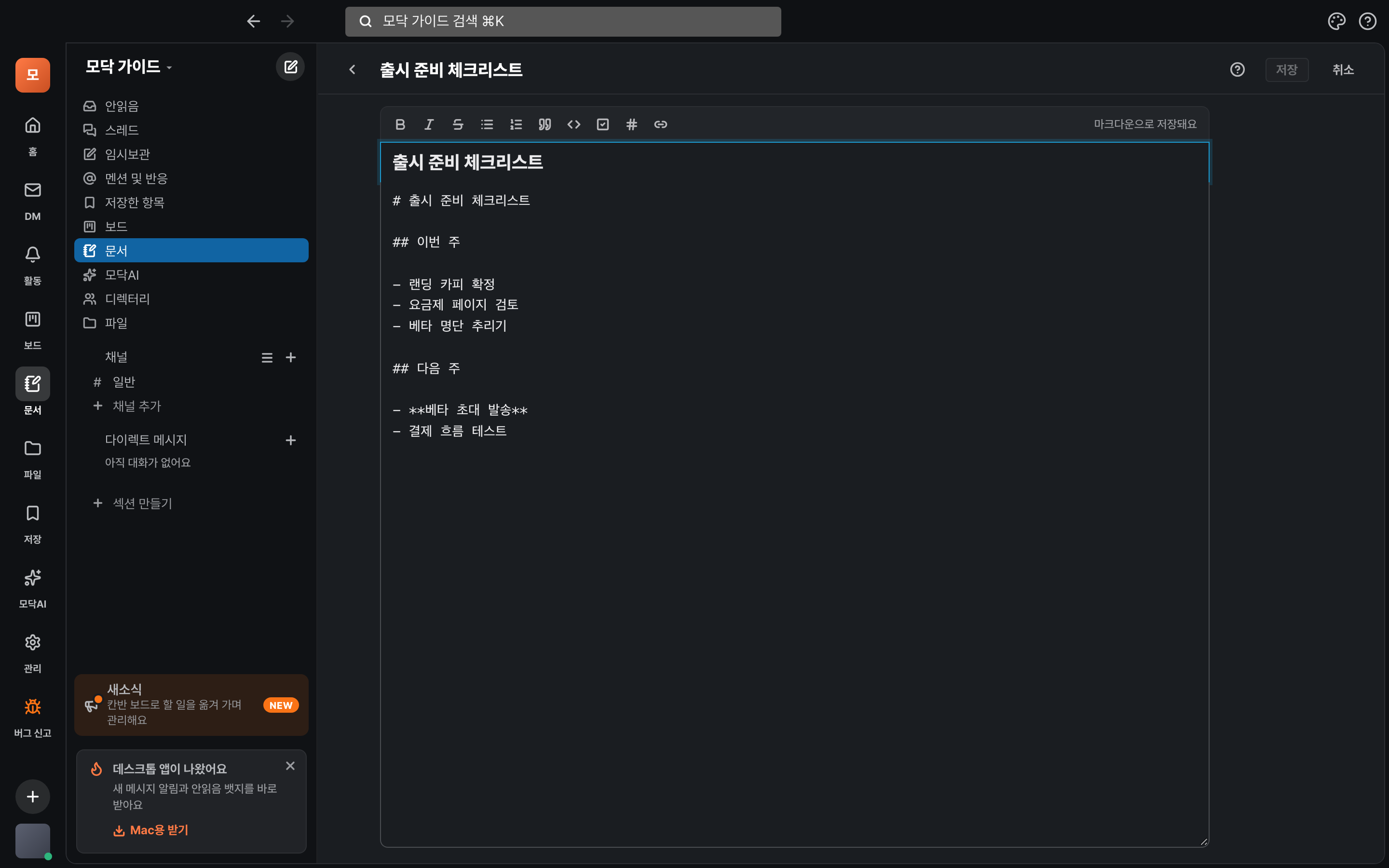
Add formatting (no need to know Markdown)
Tap a button at the top of the editor to add formatting at the cursor. There are no symbols to memorize.
A10 buttons
- B — Bold. Select some text and press it to make the text bold.
- I — Italic (for emphasis).
- S — Strikethrough (for content you no longer use).
- ≡ — Bulleted list. A dot appears at the start of each line.
- 1. — Numbered list (a list with an order).
- ❞ — Quote (a box for quoting someone or highlighting text).
- — Code (shows commands and settings exactly as written).
- ☑ — Checkbox (to-do list, click to check off).
- # — Heading (splits text into larger sections).
- 🔗 — Link (select some text, then press it and you'll be asked for the address).
Select the text first, then click a button to apply that format to it. If nothing is selected, the symbols are inserted at the cursor and you can type right inside them.
Save
What you write is only visible to others once you save. If you leave without saving, you'll be asked first.
ATwo ways to save
- Tap the 「Save」 button at the top right. When 「Saved」 appears, you're done.
- Or press ⌘S (Mac) · Ctrl+S (Windows). It's quicker when your hands are already on the keyboard.
- If something isn't saved, 「Not saved」 shows next to the title. When it disappears, everything is saved.
When you leave with unsaved changes, it asks 「You have unsaved changes」. If you click 「Leave」, your edits will be lost, so be careful.
Using it together
A doc is the team's shared notes. Anyone can read and edit it.
AGood to know
- Anyone in the same company (workspace) can view and edit docs.
- The list shows who edited last and when — so you can tell whose version is the latest.
- If someone else is editing, their changes show up on your screen right away. But if you're editing too, it won't overwrite your work.
- Guests (people who only see the channels they're invited to) can't see documents.
If you want to know who changed what, ask an admin. Depending on your company's settings, the history may be available.
Viewing on your phone
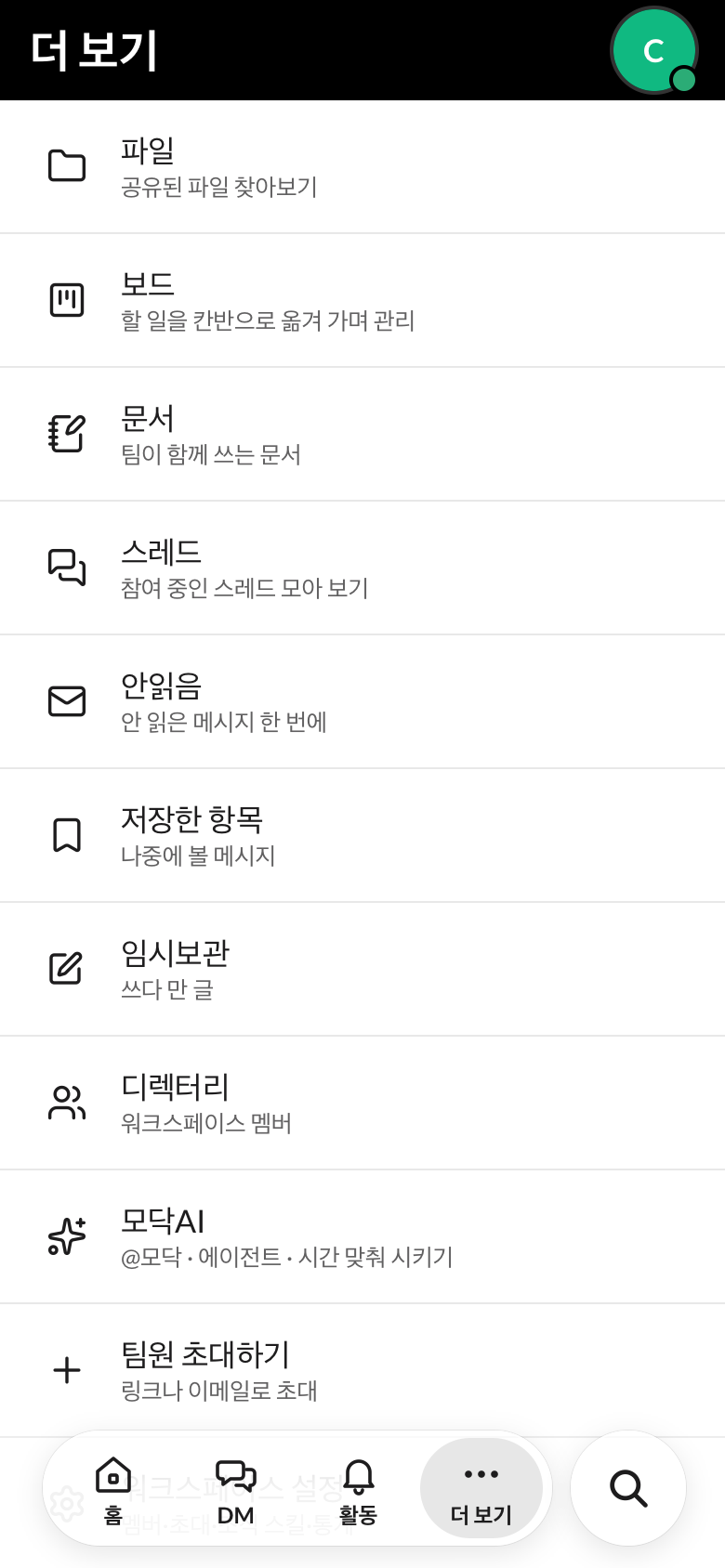
It's the same in the phone app. Find it under "More" at the bottom.
AOpening docs on your phone
- Tap 「More」(…) in the bottom tabs.
- In the list, tap "Docs".
- Tap a doc and a neatly organized view appears right away. To edit, tap "Edit" at the top right.
- Swipe the formatting button row sideways to see the rest of the buttons.
Good to know
- Saved as Markdown — even though it looks nicely formatted on screen, what's saved is text formatting. If you move it to another tool later, the formatting stays.
- Modak AI reads it too — in a channel, ask @Modak 「Find the launch checklist」 and it looks through your documents to answer.
- Delete a document — the trash icon at the top right. It can't be undone, so it asks before deleting.
- Document name — when you change the title, the list updates right away.
Stuck?
- I can't type anything
- Check that you're in the editor (you should see "Save" and "Cancel" at the top right). If you're in the view screen, tap "Edit".
- The formatting looks odd
- Undo with ↩︎(⌘Z). If that doesn't work, tap "Cancel" to leave editing and come back in — it returns to the saved version.
- I can't see what someone else edited
- Go back to the list and open it again. If you were editing, it won't overwrite your screen, so save first and then reopen.
- How do I add a table?
- There's no button for this yet. Line things up like
| Item | Owner |, then add| --- | --- |on the next line and it becomes a table. (See 「Learn more」 below)