Calling @Modak in a channel
Call @Modak in a conversation, and it reads the channel and replies within seconds.
AHow to call it
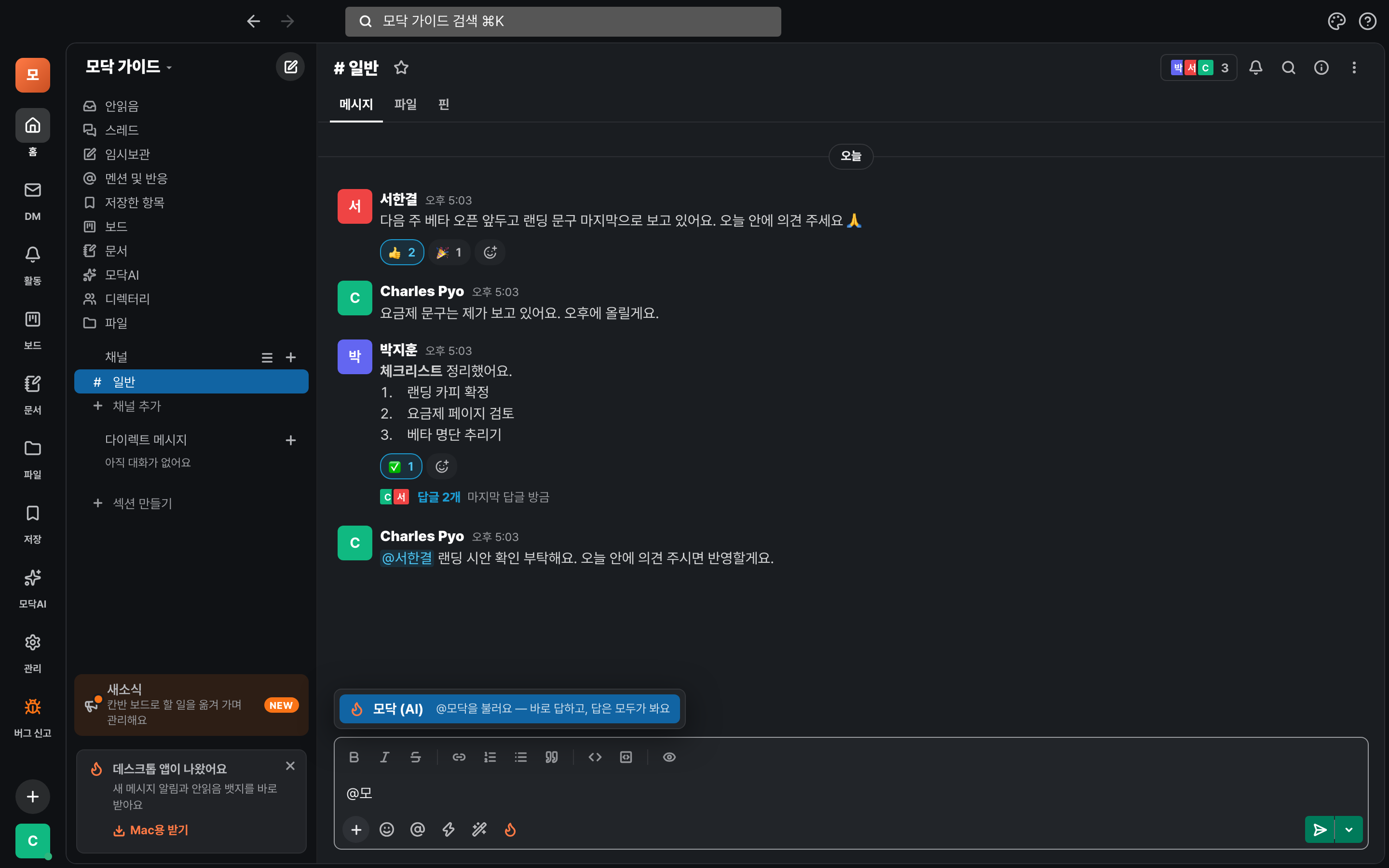
- Type @mo in the input box and 「Modak (AI)」 appears. Tap it, or choose it with Tab·Enter.
- Type your question after it and press Enter. Example: 「@Modak Summarize this thread in three lines」
- The answer stays in the channel, so the whole team can see it. If you call it inside a thread, it replies in that thread.
Try asking things like — Summarize a conversation · Find mentions you missed · "What did we decide last week?" · A short draft. For public data like laws, company filings, real estate, and statistics, Modak finds what fits your question and uses it as a source.
Ask privately
For questions you don't want to leave in the channel, ask with ⌘K.
AAsk Modak
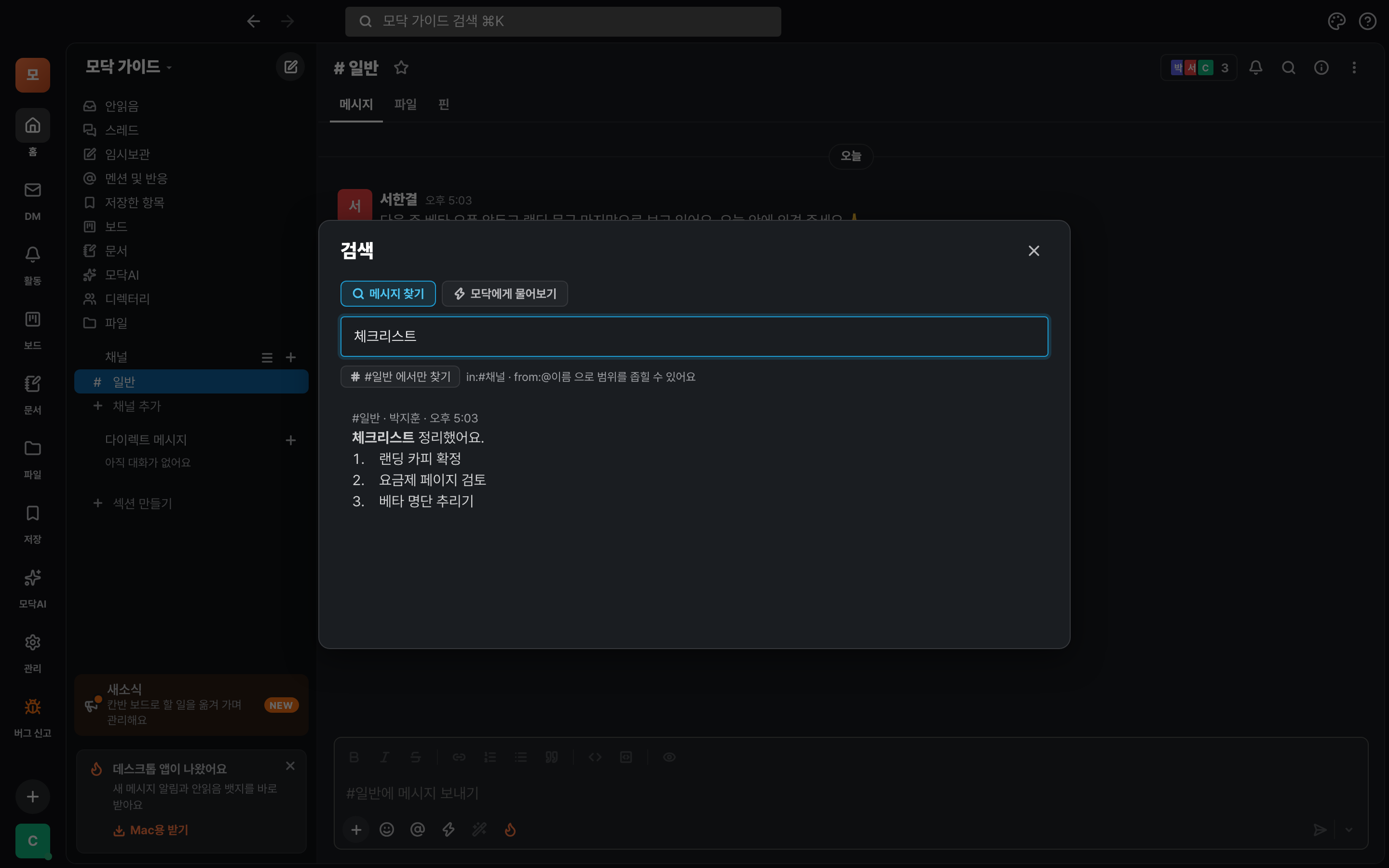
- Press ⌘K (Ctrl+K on Windows) to open search.
- Click the 「Ask Modak」 tab.
- Ask in a full sentence. Example: "What price did we agree on last month?"
- AI searches through our conversations to answer, and adds a link to the original message so you can see where it came from. Only you can see the answer.
It finds results even with different words — if you ask about 「the day the server went down」, it finds messages that say 「outage」 or 「502」. That's because conversations are indexed by meaning.
A tour of the Modak AI screen
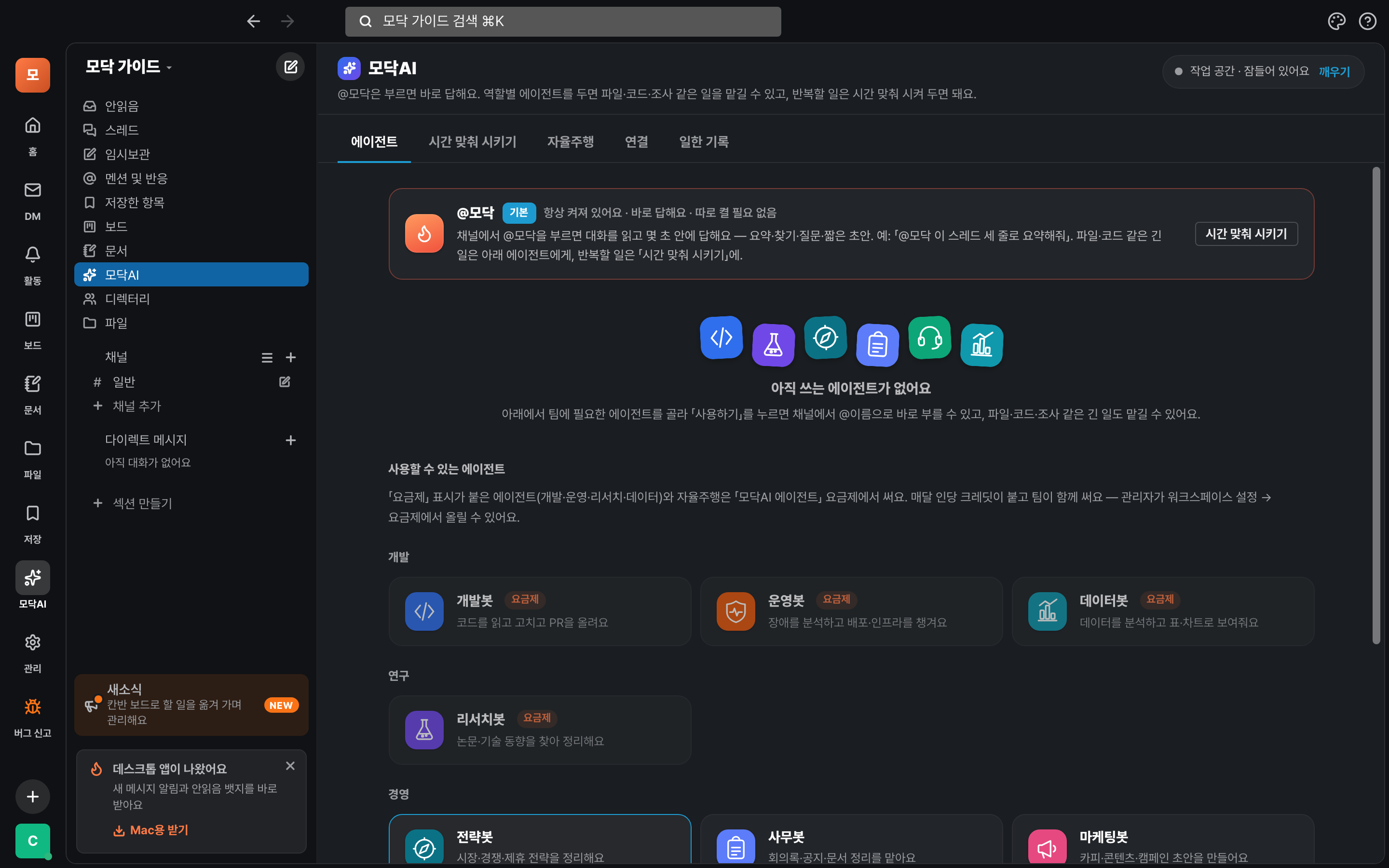
Tap 「Modak AI」 in the left list to manage your AI teammates in one place. There are 5 tabs at the top.
AWhat each tab does
- Agents — @Modak is always on, and there's nothing to install. Add role-based agents like DevBot, OpsBot, and ResearchBot, and you can hand off long tasks like files, code, and research (paid plan required).
- Schedule tasks — Ask for a recurring task in one sentence. We'll explain in the next step.
- Autopilot — It detects problems, fixes them, has another AI review the fix, and reports all the way through deployment. You decide how far it goes automatically in the wizard.
- Connections — Connect data like your company DB, sheets, Notion, or Jira, and the AI will use it as a source. It only reads and never writes.
- Activity log — Shows exactly what the AI did, when, and how much it cost (admins).
Schedule a task
Give it one sentence and it'll do the task on schedule, without you calling it.
AHow to schedule it
- Go to Modak AI → the 「Scheduled tasks」 tab.
- Describe what you want done in your own words. For example: "On weekday mornings at 8:30, read the conversations from last night until now and sort them into three groups: decisions made, requests for me, and things to keep an eye on."
- Modak fills in when, where to look, and where to send. In the preview, fix anything that's wrong yourself.
- Once you save, it runs on its own at that time. If there's nothing to report, it quietly skips.
Things you can ask it to do — A guard for missed mentions · Morning briefing · Patrol for unanswered questions · Weekly report draft.
Skills · Translate · Polish
Things you do often get faster with skills, and foreign-language posts and your own writing get faster with translate and polish.
AHow to use it
- Type / in the input box and a list of skills (meeting notes, conversation summary, and more) appears. Just pick one to call it.
- Skills used by your organization are created in workspace settings (admin).
- For messages in a foreign language, use the message's Translate button to read it in your language. Only you can see it.
- Before you send a message, tap Polish (✨) in the message box. It only fixes the wording, not the meaning. If you don't like the result, press ⌘Z to undo.
Calling Modak on your phone
On your phone, the first card on Home is the fastest way.
AWays to use it on your phone
- Tap the card at the top of Home, "Ask @Modak right away".
- In channels and threads, use @Modak or call skills with /, just like on the PC.
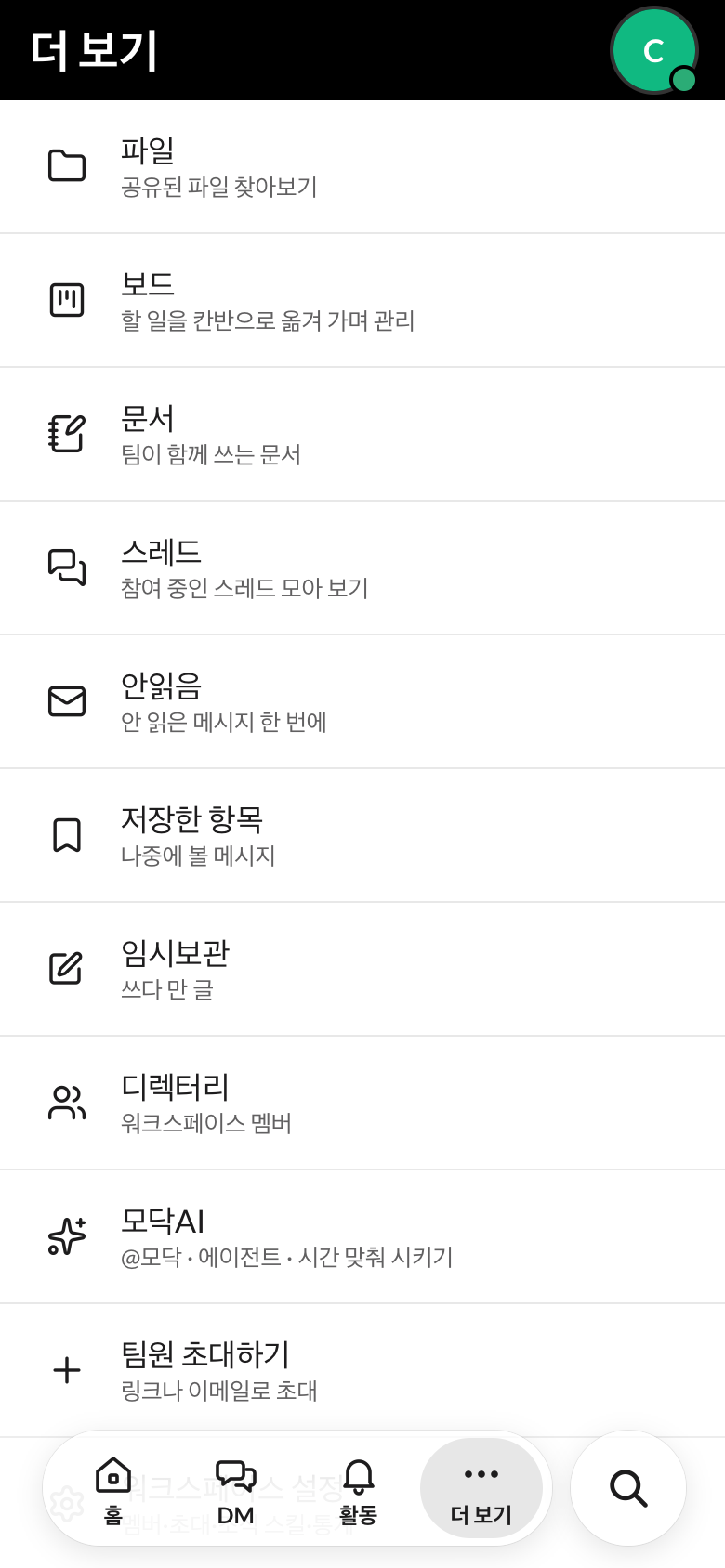
- Go to More → Modak AI to use scheduled tasks and agents.
Good to know
- Modak only sees what you can see — Private channels and DMs that the person who called Modak can't see are hidden from Modak too.
- It shows its sources — answers come with links to the original messages. If it can't find anything, it won't make something up — it'll say 「I couldn't find it」.
- Your conversations aren't used to train AI — you can read more in the Privacy Policy.
- Pricing — Anyone can use the basic answers from @Modak. Things like role-based agents and autopilot depend on your plan → Pricing.
- You can call Modak from ChatGPT and Claude too → Connect AI.
Stuck?
- I called @Modak but got no answer
- Check that you picked 「Modak (AI)」 from the list in the input box. If there's still no answer, let us know through 「Report a bug」 in the app.
- The answer doesn't mention our conversation
- Modak AI only reads channels the person who called it can see. The conversation might be in a private channel or in another channel. If you tell it the channel name, it finds things better.
- I don't want to leave it in the channel
- If you use "Ask Modak" in ⌘K, only you can see the answer.
- My scheduled task isn't running
- In Modak AI → Scheduled tasks, check that the time and destination are right. If there's nothing to report, it stays quiet on purpose.