Chatting in channels
A channel is a chat room for a topic. If you've used Slack, it's the same.
AJoining a channel
- Tap a name in the 「Channels」 list on the left.
- To add a new channel, tap 「+ Add channel」 below the list (or the + on the 「Channels」 line) and enter a name.
- Private channels are only visible to people who were invited.
BWriting a message
- Type in the box at the bottom of the screen and press Enter to send. To start a new line, press Shift+Enter.
- Use the buttons above the input box to add bold, italic, strikethrough, links, lists, quotes, and code.
- Use @name to send that person a notification. @Modak calls the AI (see Modak AI).
Messages sent while you're offline go out as soon as you're connected again. You don't need to write them again.
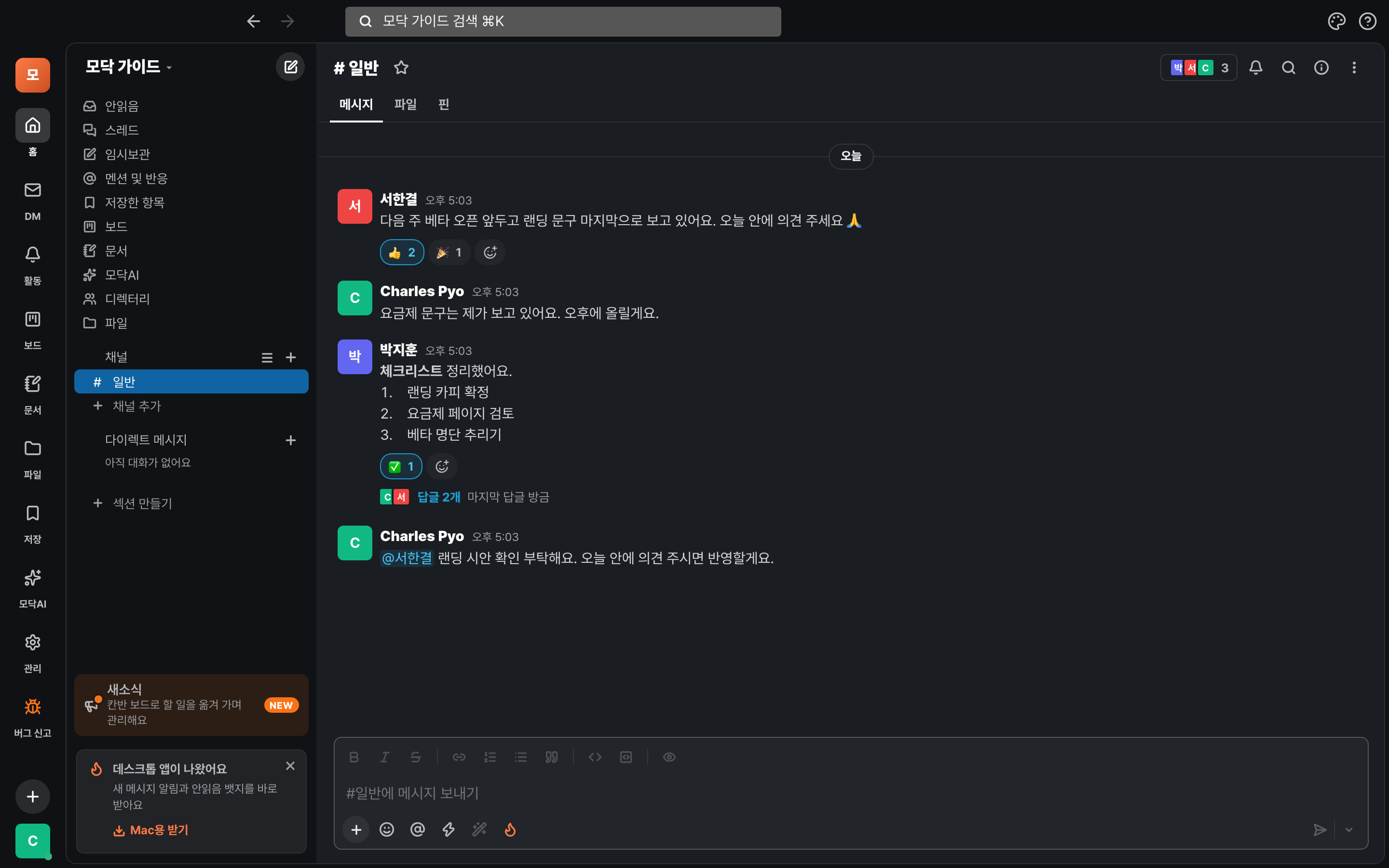
Continue in a thread
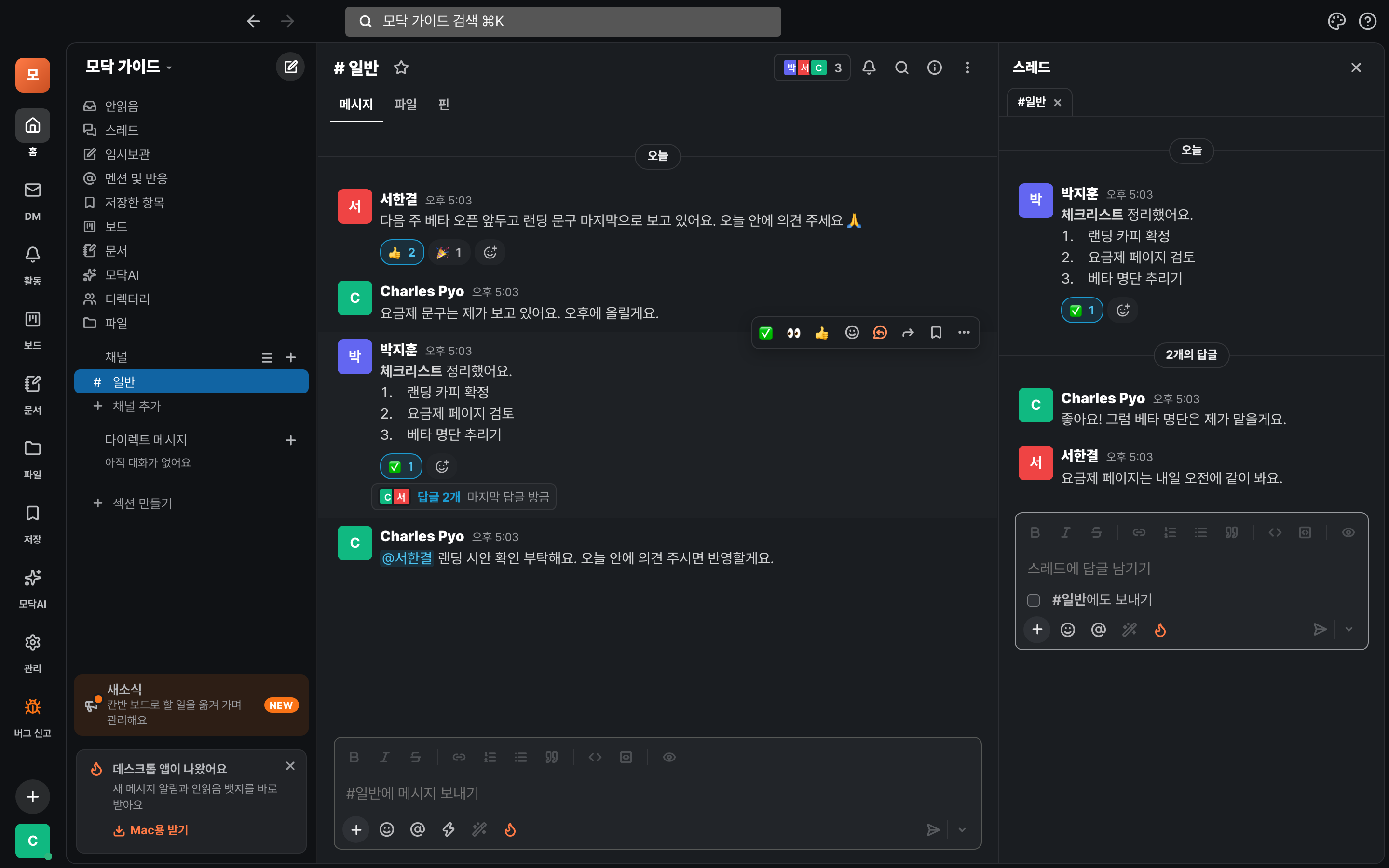
Replies are gathered in a thread, so the channel doesn't get mixed up with lots of topics.
AReply
- Hover over a post and tap the Reply (thread) button in the row of buttons that appears.
- A 「Thread」 panel opens on the right. Write your reply in the box below and press Enter.
- A "N replies" link appears under a post that has replies. Tap it to open the thread again.
- If you want people in the channel to see it too, check 「Also send to #channel」 below the reply box.
Threads you've joined are collected under 「Threads」 on the left. When someone replies, you can continue right there.
Reactions and files
Share short replies with emoji reactions and materials as files.
AEmoji reactions
- Hover over a post, tap the emoji button, and pick one.
- Tap a reaction under a post to add the same reaction yourself. Tap it again to take it back.
BUploading files
- Tap + in the input box and choose a file. You can upload images, videos, and documents, up to 2GB each.
- You can also drag and drop files onto the chat screen.
- The 「Files」 tab at the top of a channel shows that channel's files, and 「Files」 on the left gathers all files.
Search
Find old conversations with just one ⌘K.
AOpen search
- Press ⌘K on Mac or Ctrl+K on Windows. You can also tap the search box at the top.
- On the 「Find messages」 tab, type what you're looking for. Click a result to go to that message.
- On the 「Ask Modak」 tab, ask in a full sentence and the AI searches your conversations to answer. Only you can see this answer.
Narrow it down — Use
in:#channel to pick a channel and from:@name to pick a person.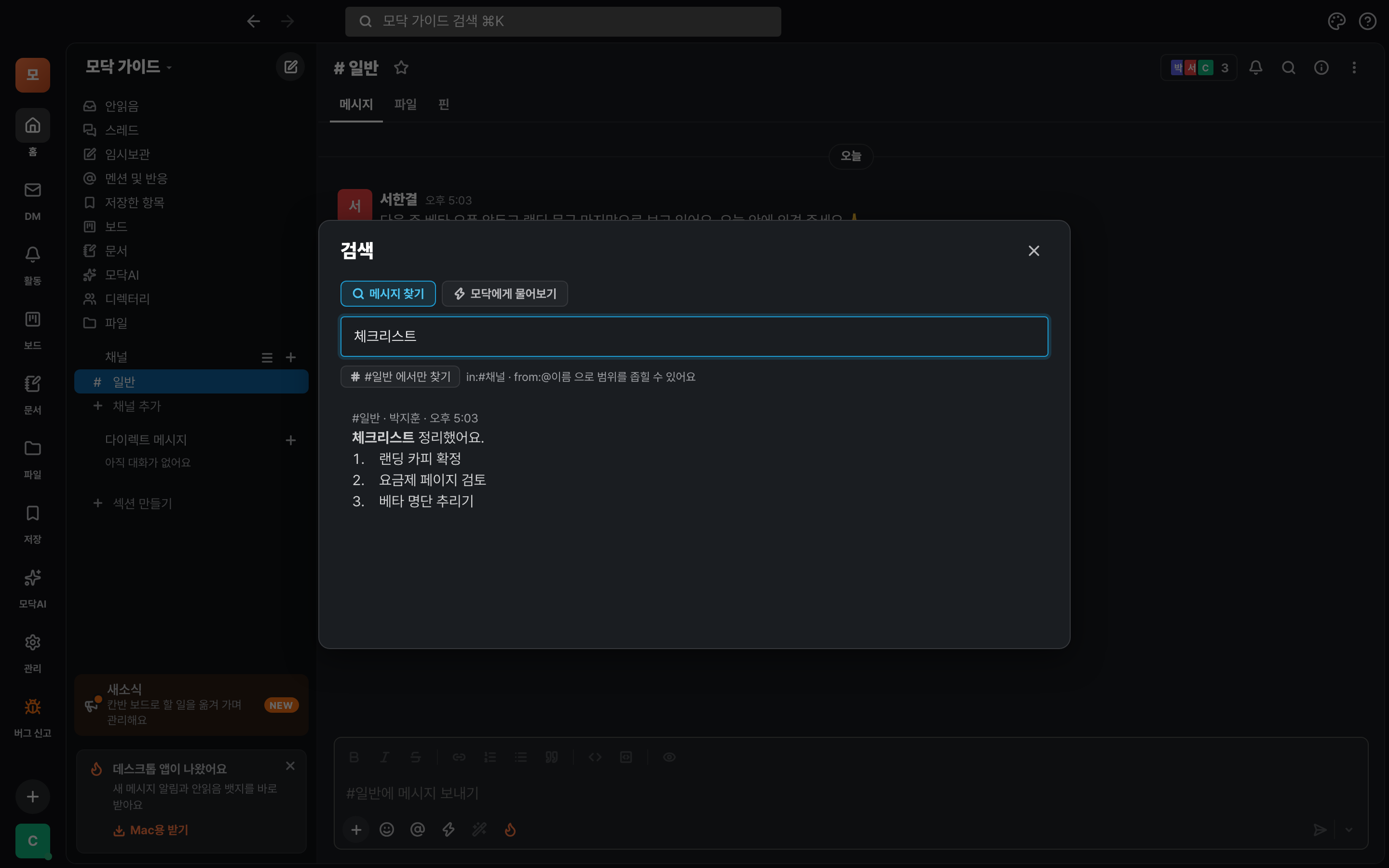
Never miss a thing
The list at the top left gathers the things you need to take care of.
ALeft-hand list
- Unread — All your unread messages at once. Threads — Threads you're part of.
- Mentions & reactions — when someone mentions you or reacts to your message.
- Saved items — Messages you saved by hovering over them and pressing Save (bookmark). Drafts — Messages you started writing but didn't finish.
- Use the + on the Direct messages row to start a 1:1 chat with someone → How to use DMs.
Share one message elsewhere — hover over it and choose Copy link (pasting it takes people straight to that message) or Forward (send it to another channel or person).
| What you want done | Mac | Windows |
|---|---|---|
| Search | ⌘K | Ctrl+K |
| Unread · Threads · Mentions & reactions | ⌘⇧A · ⌘⇧T · ⌘⇧M | Ctrl+Shift+A · T · M |
| Direct messages · Saved items | ⌘⇧K · ⌘⇧S | Ctrl+Shift+K · S |
| Go to the previous or next conversation | ⌥↑ / ⌥↓ (for unread conversations only, ⌥⇧↑ / ⌥⇧↓) | |
Chatting on your phone
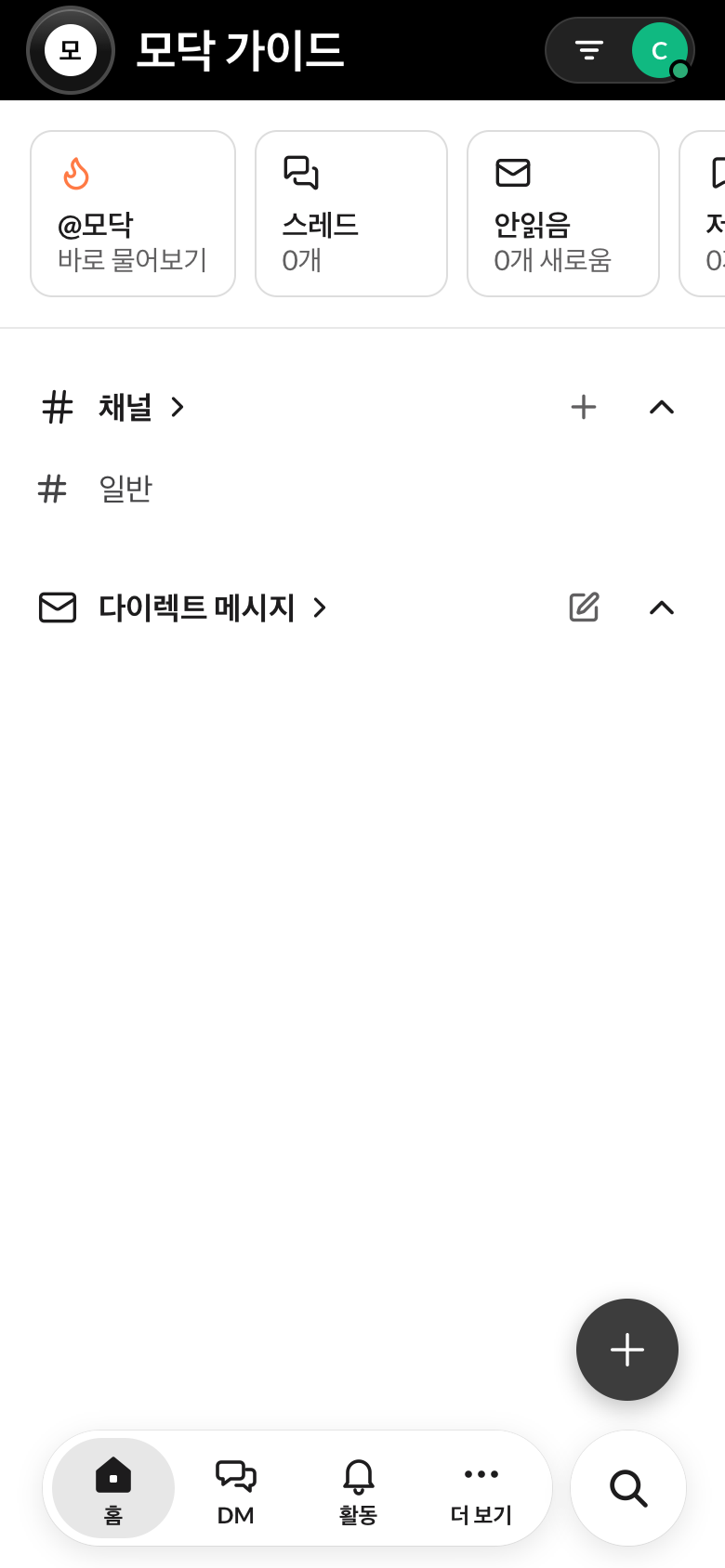
The phone app works the same way. Switch with the tabs at the bottom.
ABottom tabs
- Home — Your list of channels and DMs. The cards at the top take you straight to Ask @Modak, Threads, and Unread.
- DM · Activity (mentions and notifications) · More (files, boards, docs, saved items, and more).
- Use Search (magnifier) at the bottom right to find things from anywhere.
- Tap a channel to open the conversation, and swipe right to go back to the previous screen.
Good to know
- Edit or delete a message — hover over your message to see the edit and delete buttons.
- If you get too many notifications, you can turn them down per channel (the bell button at the top of the channel).
- If you're coming from Slack, you can bring over your conversations, threads, and files as they are → Moving over from Slack.
- Leave it to AI — Call @Modak in a channel and it will summarize the conversation and find what you missed → Modak AI.
Stuck?
- My message won't send
- You may have lost your connection. Messages you tried to send go out as soon as you reconnect. If they still don't send, try refreshing the screen.
- The channel isn't in my list
- You can only see a private channel once you're invited. Ask the channel admin to invite you.
- I can't see replies in the channel
- Thread replies stay inside the thread. To show a reply in the channel too, check 「Also send to #channel」 when you write it.
- I can't find an old message
- In ⌘K, narrow the scope with
in:#channel, or ask by meaning in "Ask Modak".