Help · New here?

New to Modak?

One page per feature, with real screenshots.
No jargon — just follow along on screen.

Get started with Modak Browse features

Three things and you can start

1

Pick a feature on the left rail

Home, Activity, Boards, Docs, Files… use the vertical strip on the left to move around.

2

Create with the button top-right

Screens with a list — like Boards and Docs — have a create button at the top-right.

3

Tap to see details

Tap once on a card, doc or person to see details — and edit from there.

Not sure? Try clicking anything — you can't break it.

What to learn

Pick what you want to do

Tap any topic and we walk you through it step by step, with pictures.
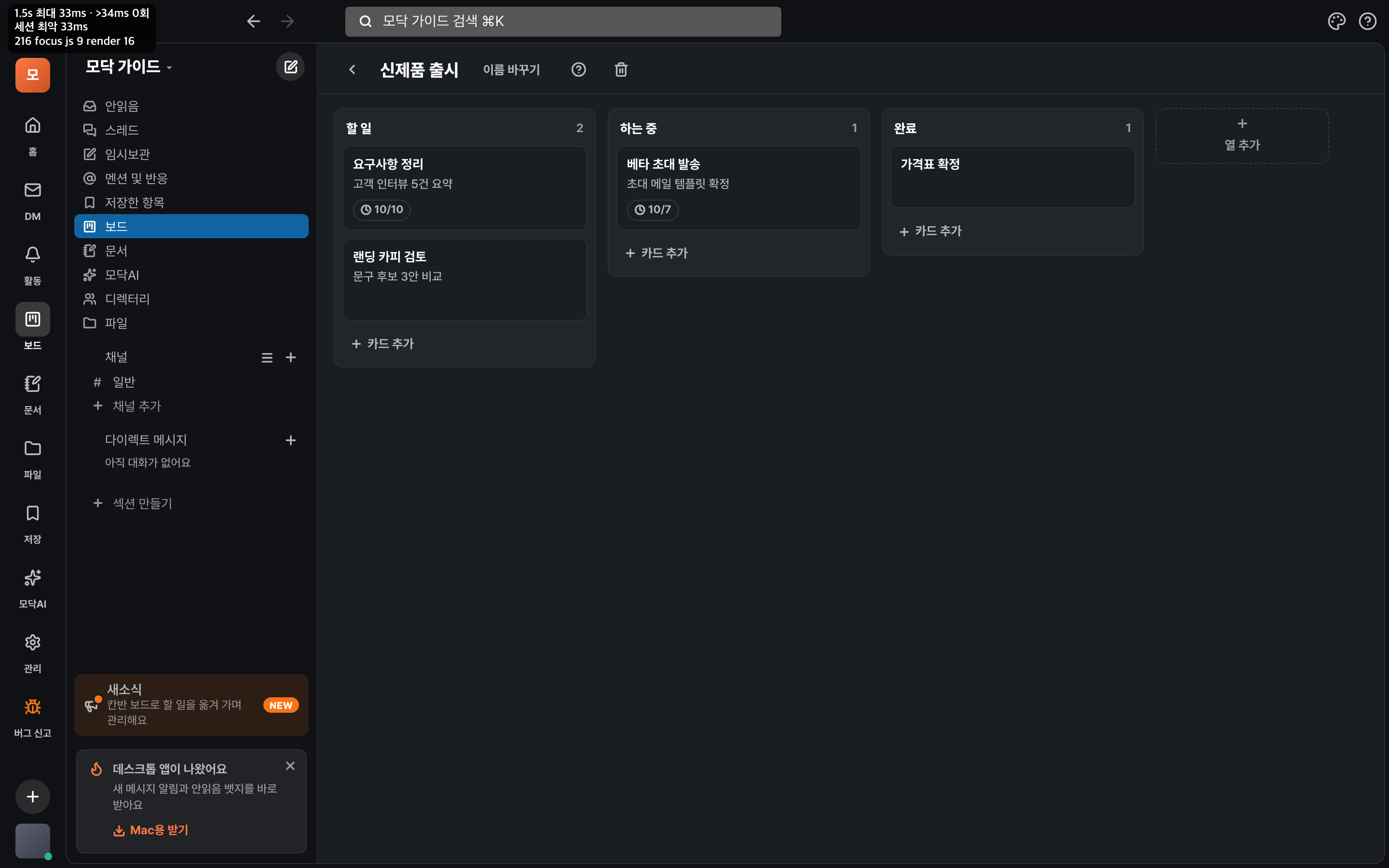
A kanban board — columns and cards

Kanban boards

Break work into columns and cards, then drag finished ones across.

Create a boardCardsDrag & dropDue datesAssignees
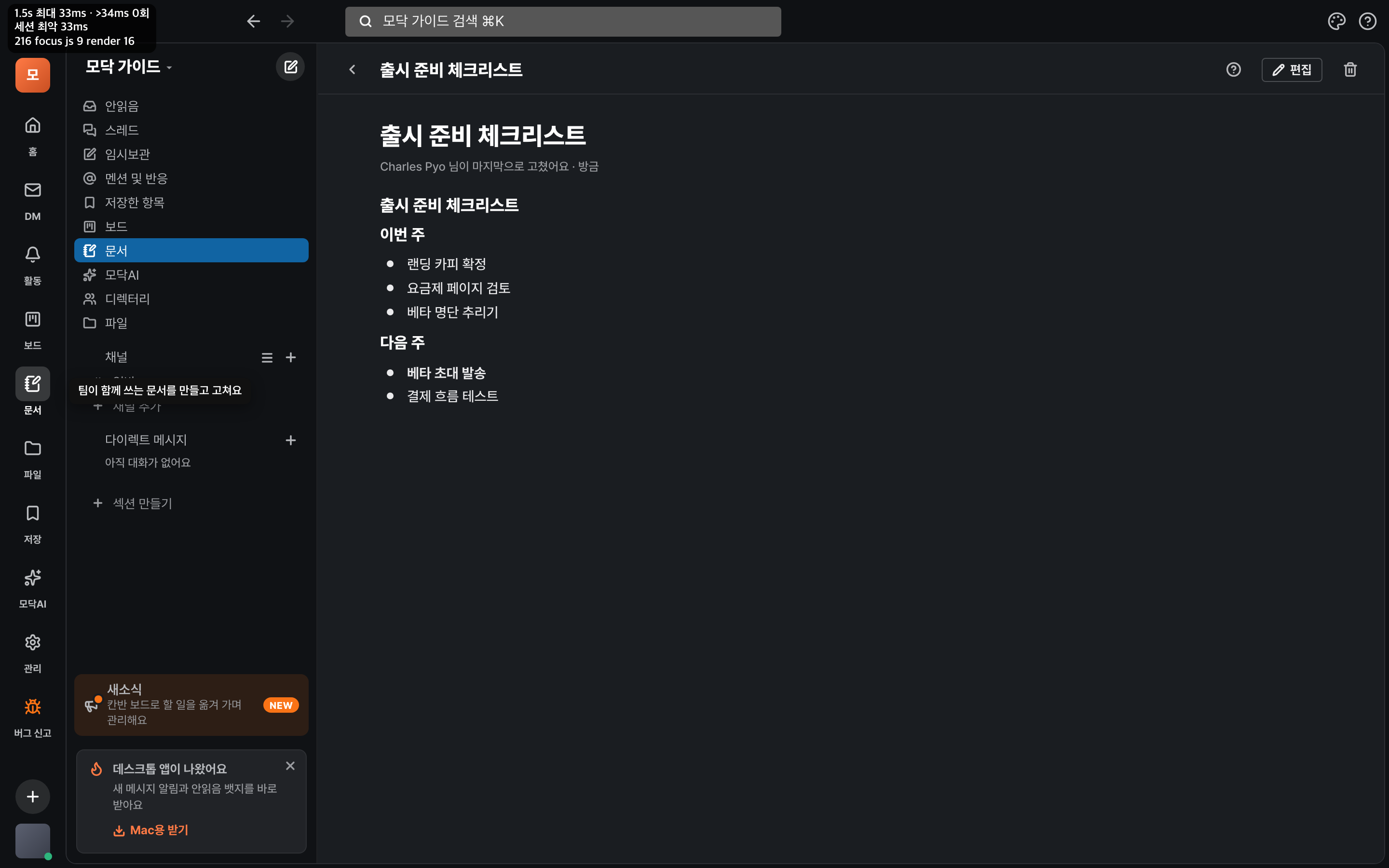
A doc — your team wiki, nicely formatted

Docs

It's your team wiki. Keep meeting notes, checklists and rules you'll come back to.

New docEditFormattingSaveCollaborate
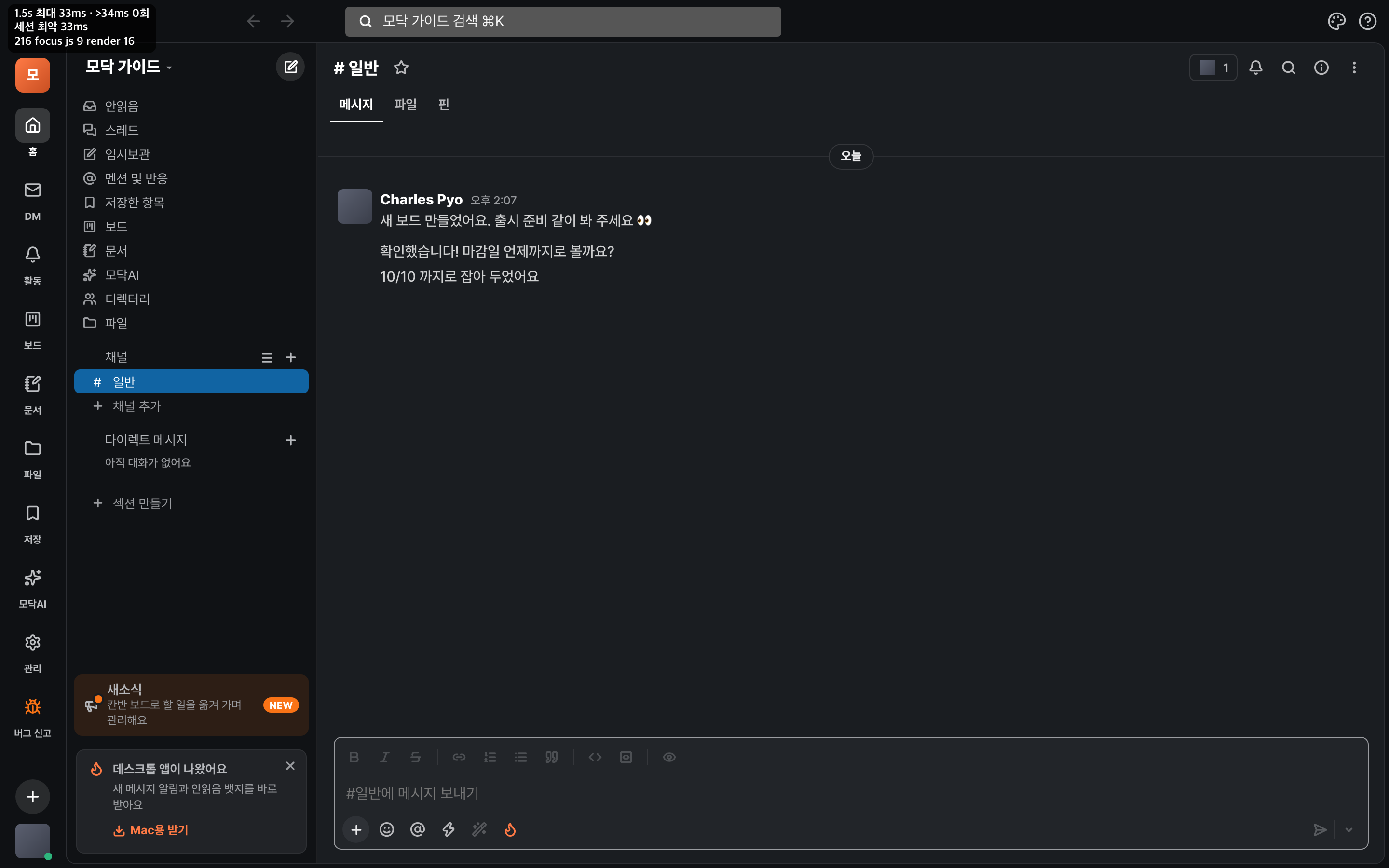
Modak home — channels and conversations

Channels and messages

Talk in channels, continue in threads, share files. If you have used Slack, it works the same way.

MessagesThreadsFilesSearch
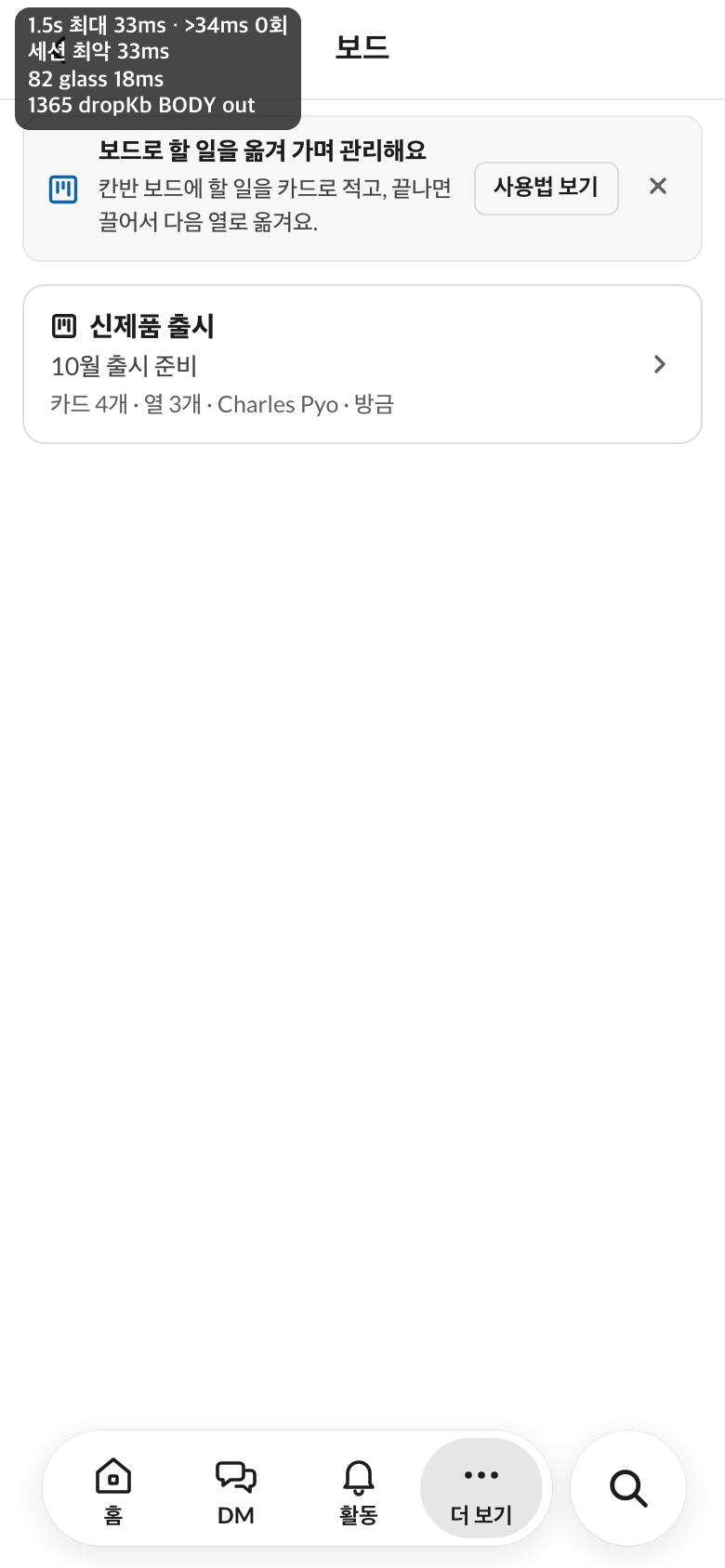
Modak on your phone

Modak AI Coming soon

Call @Modak in a channel and it summarizes conversations, finds mentions you missed, and even looks up public data. It reads boards and docs too.

@ModakSummariesSearch
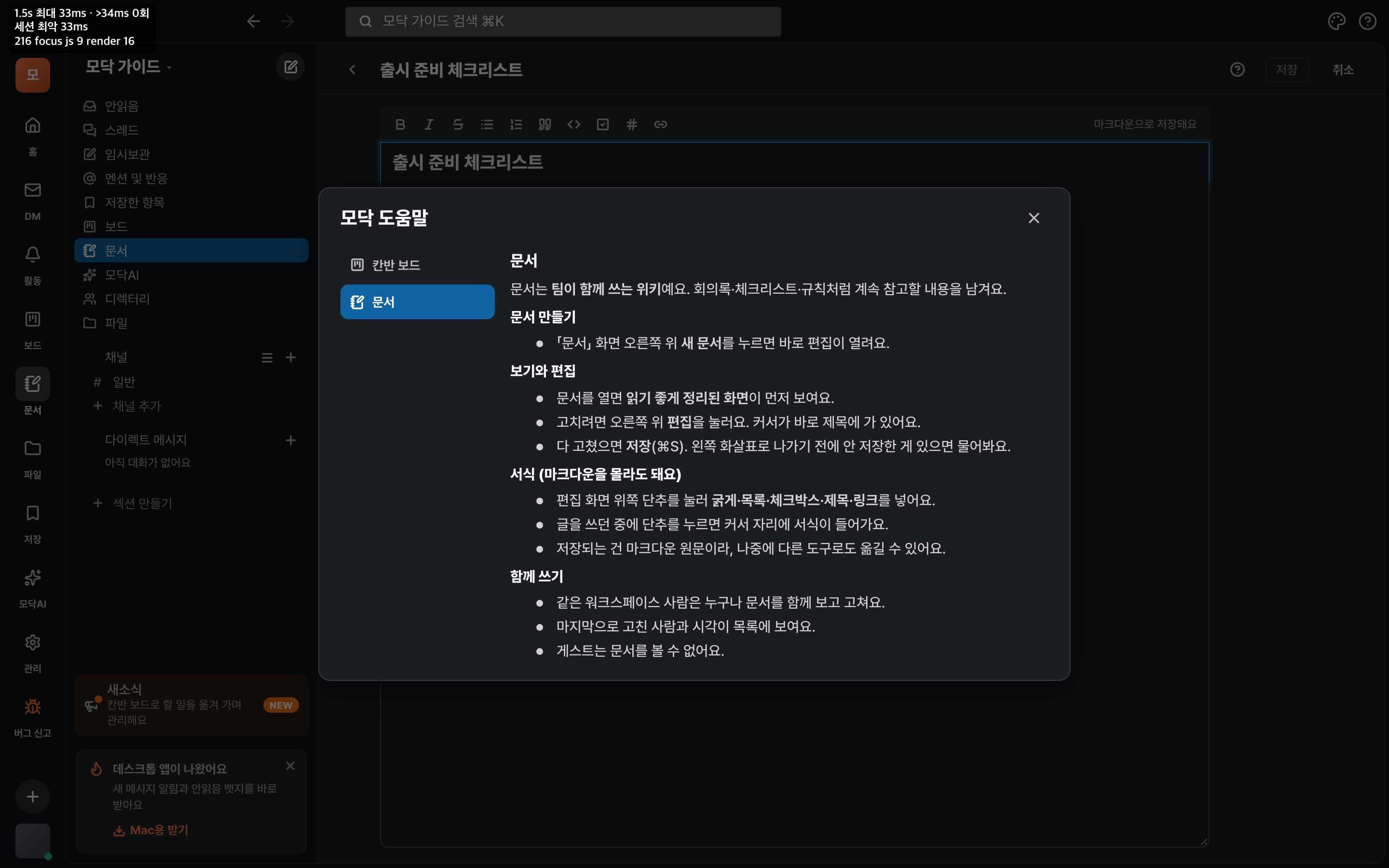
The in-app help window

In-app help In the app

Tap the ? at the top-right of any screen and its guide opens right there — no need to leave what you're doing.

Screen guideShortcuts
Common questions

Common questions

What can a guest see?

A guest sees only the channel they were invited to. Other channels, the directory, boards and docs are hidden. Use it to talk with people outside your company (clients, partners).

You can see who is a guest under Workspace settings › Members, and in a channel's Members tab.

Does it work on my phone?

Yes. The phone app has the same features, boards and docs included. Instead of the left rail, use the More tab at the bottom. On a board, swipe sideways to see the columns.

Do I have to pay?

You can start for free. There are paid plans as your team and AI usage grow — see Pricing. You can also install it on your own server (On-premise).

Where do our conversations and docs live?

Everything is stored safely in Modak Cloud and only your company can see it. If you want to run it yourself, the same features are available on-premise (installed on your own server).

Can I bring my Slack over?

Yes. Upload your Slack export ZIP and we bring over messages, threads, files and the member list. See Moving from Slack.

Can I use Modak from ChatGPT or Claude?

Yes. Connect Modak to the AI you already use and it reads only the channels and DMs you can see. AI connections has a one-minute guide.

Stuck?

  • Something looks wrong / won't tap — refresh first (⌘R, or pull down on your phone). If it still happens, tell us.
  • I think I found a bug — use Report a bug at the bottom-left of the app and tell us from that screen. Sending a picture helps us fix it much faster.
  • I don't know what to click — the ? at the top-right of any screen opens its guide. Or pick a feature on this page.
  • I want to talk to a person — the people who built it read these. Use Report a bug in the app, or email support@modak.im.

Ready to try it?

The fastest way is to make one and click around.

Get started with Modak

To invite people, open the workspace menu at the top-left of the app → Invite teammates